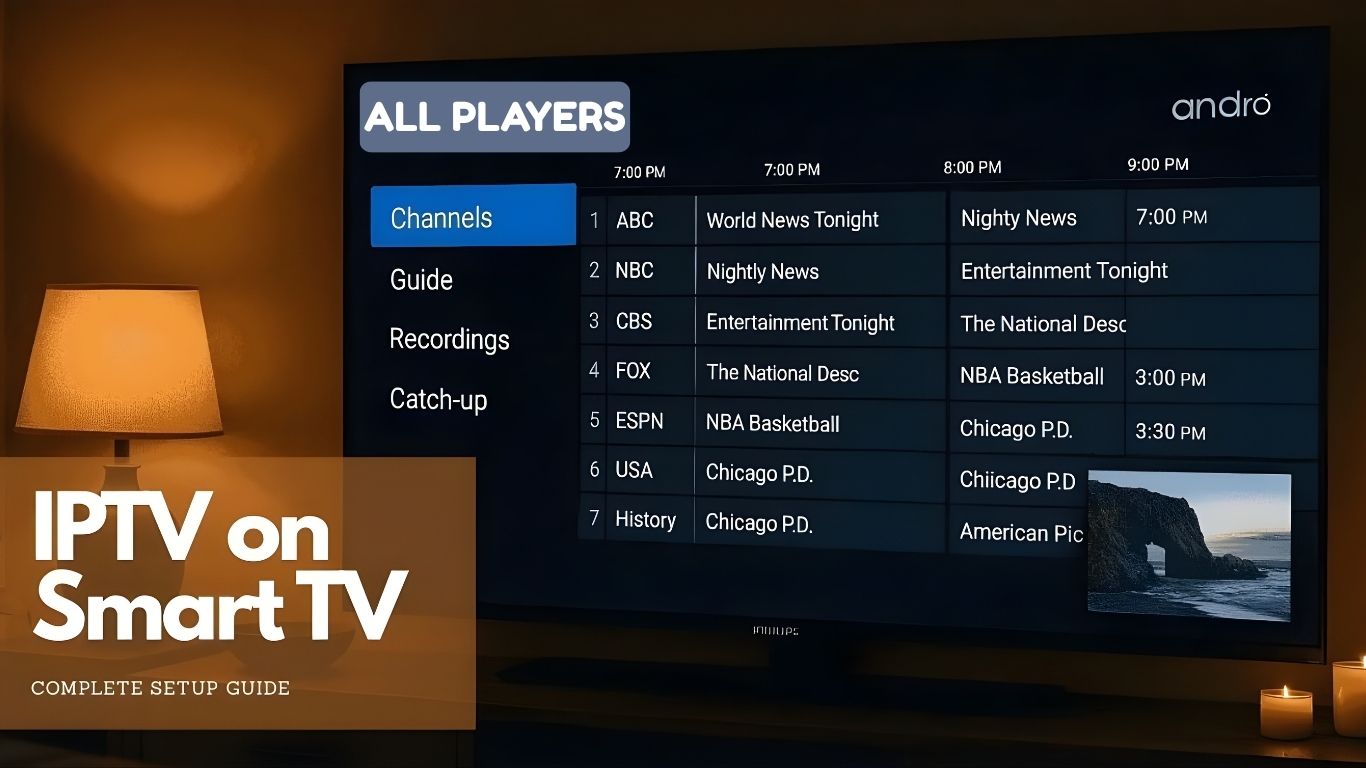
How to Set Up IPTV on Smart TV: Smarters Pro, Hot IPTV, IBO Player
October 16, 2025
•
5 min read
Why Use IPTV Apps on Smart TV?
How to Set Up IPTV on Smart TV: Step-by-Step Tutorials
1. Setting Up IPTV with Smarters Pro App
Step 1: Install Smarters Pro App
- First, open the App Store or Google Play Store on your Smart TV.
- Next, search for Smarters Pro in the search bar.
- Then, click Install and wait for the download to finish.
Step 2: Log In to the App
- Launch the Smarters Pro app after installation.
- Agree to the terms of use.
- On the home screen, choose Add User.
Step 3: Enter Your IPTV Details
Step 4: Start Watching
- After saving your details, go back to the home screen.
- Select your profile to open your playlist.
- Explore Live TV, movies, and series, and enjoy streaming!
2. Setting Up IPTV with Hot IPTV App
Step 1: Download and Install Hot IPTV
- First, open the App Store or Google Play Store on your Smart TV.
- Search for Hot IPTV in the store.
- Click Install and wait for the app to download.
Step 2: Add Your Playlist
- Open the Hot IPTV app from your apps menu.
- On the main screen, click Add Playlist.
- Enter the M3U Playlist URL provided by your IPTV provider.
- Name your playlist and save it.
Step 3: Start Streaming
- Open your playlist from the home screen.
- Browse through categories like Live TV, Movies, or Series.
- Click on a channel or video to start watching.
3. Setting Up IPTV with IBO Player Pro
Step 1: Download and Install IBO Player Pro
- Open the App Store or Google Play Store on your Smart TV.
- Search for IBO Player Pro in the search bar.
- Download and install the app.
Step 2: Activate the App
- Open the app. You’ll see an activation key on the screen.
- Go to the official IBO Player website on your phone or computer.
- Enter the activation key and follow the instructions to activate your account.
Step 3: Add Your Playlist
- Open the app again after activation.
- Go to Settings and select Add Playlist.
- Enter the M3U Playlist URL provided by your IPTV service.
- Save the playlist.
Step 4: Customize Settings
- Enable EPG (Electronic Program Guide) to see schedules for live TV.
- Adjust video settings for better quality.
Step 5: Start Watching
- Go back to the home screen.
- Select your playlist and explore Live TV, Movies, or Series.
Tips for the Best IPTV Experience
- Use a fast and stable internet connection (at least 10 Mbps for HD content).
- Connect your Smart TV to the internet via Ethernet for better performance.
- Always keep your IPTV app updated to the latest version.
- Adjust buffer settings in the app to prevent lagging.
